Status: desk_rt_ipc_error
This error typically occurs when an external application, such as the operating system or a security tool, terminates the AnyDesk session. The underlying causes and potential solutions may differ depending on the operating system.
If you encounter this message while attempting to connect to a Windows device, it’s highly likely that a security solution installed on the device is responsible for disconnecting AnyDesk or other remote desktop connections. A typical cause of this issue is anti-ransomware security features.
On the other hand, if you encounter this error while connecting to a Linux device, it may be because of an unsupported display server.
Potential solutions:
Windows:
- Whitelist AnyDesk or disable anti-ransomware features on the device.
- Reinstall AnyDesk if the security solution blocks or quarantines the application.
Linux:
- Ensure that both the login manager and the system are using Xorg to avoid unsupported display server issues.
- Make sure that the DNS resolver resolves AnyDesk URL addresses correctly. See Firewall.
Easily Fixed: AnyDesk “desk_rt_ipc_error” [Windows & Linux]
Discover how to fix the AnyDesk “desk_rt_ipc_error” on Windows and Linux. Follow the provided solutions to overcome this problem and enjoy uninterrupted remote desktop access.
By Ellie / Last Updated October 17, 2023
Question about AnyDesk «desk_rt_ipc_error»
After successfully installing AnyDesk on my Linux RHEL PC, I encountered the ‘desk_rt_ipc_error’after a few days, and unfortunately, the error persists. Whenever I log out, switch users, or reboot the machine, AnyDesk displays my ID as online. However, attempting to connect always results in the frustrating ‘desk_rt_ipc_error’message. How can I resolve this issue?”
— Question from Reddit
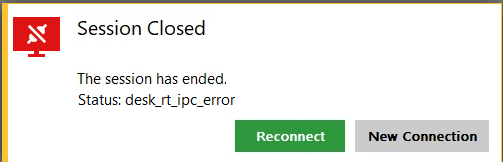
What is the meaning of desk_rt_ipc_error?
The «desk_rt_ipc_error» is often triggered by external applications, like operating systems or security tools, terminating AnyDesk sessions. The specific causes and solutions differ depending on the operating system in use.
For Windows users, this issue often arises due to security solutions, like anti-ransomware features, and disconnecting AnyDesk, or other remote connections.
Linux users might encounter the error due to an unsupported display server.
How to fix AnyDesk “desk_rt_ipc_error”
For Windows and Linux users, the potential solutions to fix AnyDesk “desk_rt_ipc_error” are different.
How to fix AnyDesk “desk_rt_ipc_error” on Windows
Windows users can explore three potential solutions to address the «desk_rt_ipc_error”.
Solution 1. Whitelist AnyDesk on the firewall
You’ll need to whitelist AnyDesk on the firewall.
Step 1. Navigate to «System and Security» > «Windows Defender Firewall» in Control Panel.
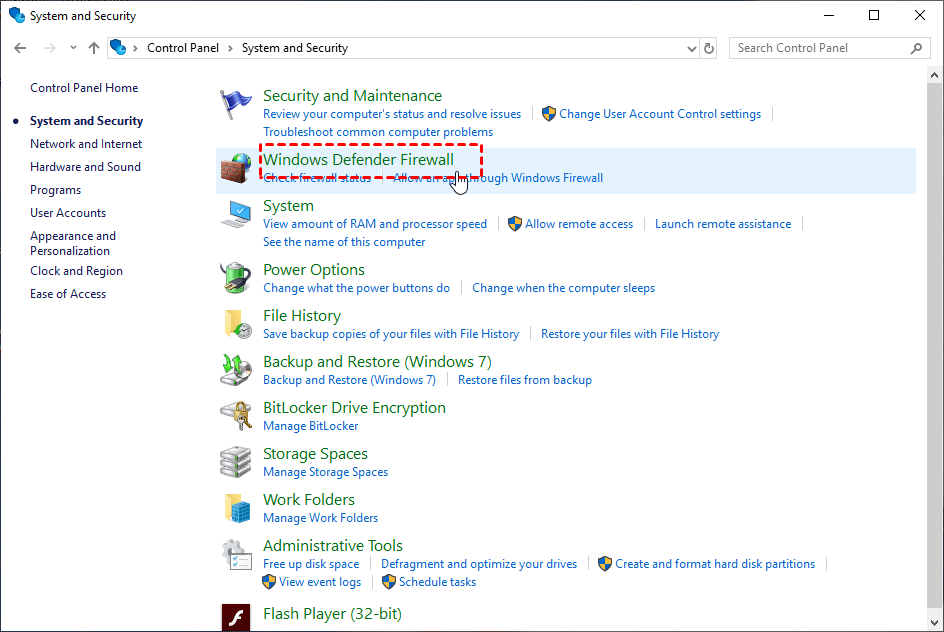
Step 2. Select «Allow an app or feature through Windows Defender Firewall» on the left pane.
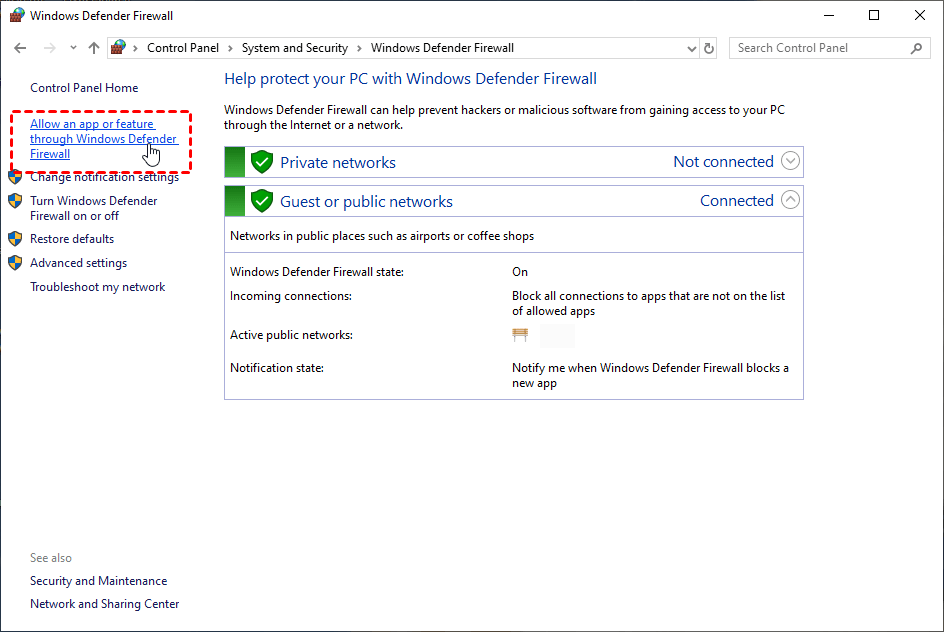
Step 3. Click Change settings, locate and select AnyDesk, then click OK.
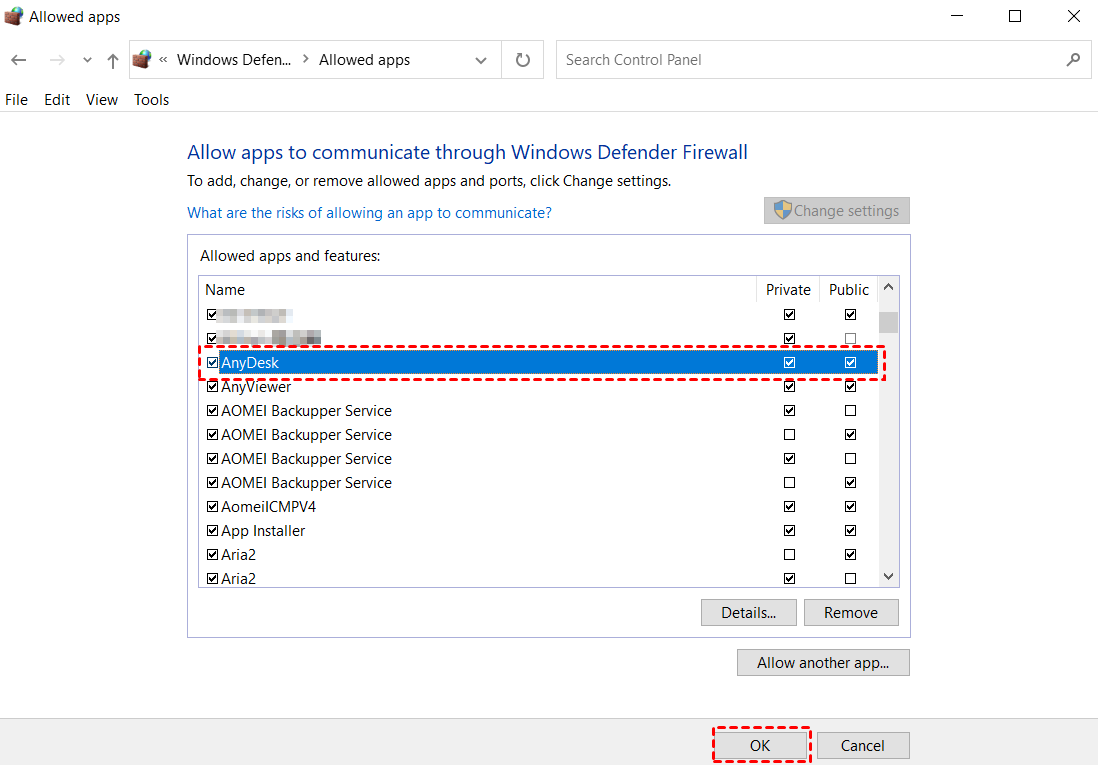
Solution 2. Disable anti-ransomware features
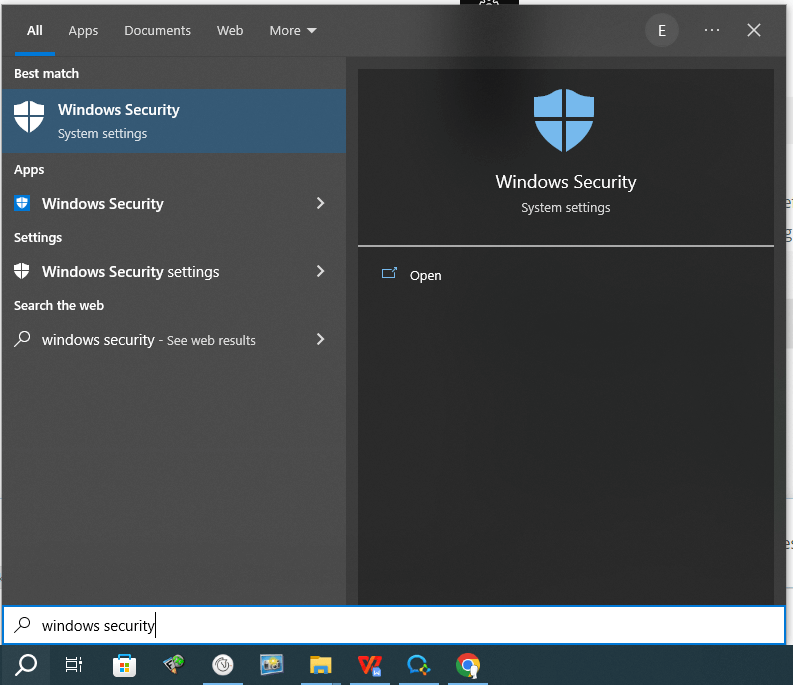
You’ll need to disable anti-ransomware features on the device. We’ll show you how to disable anti-ransomware features.
Step 1. Search for «Windows Security» and open it.
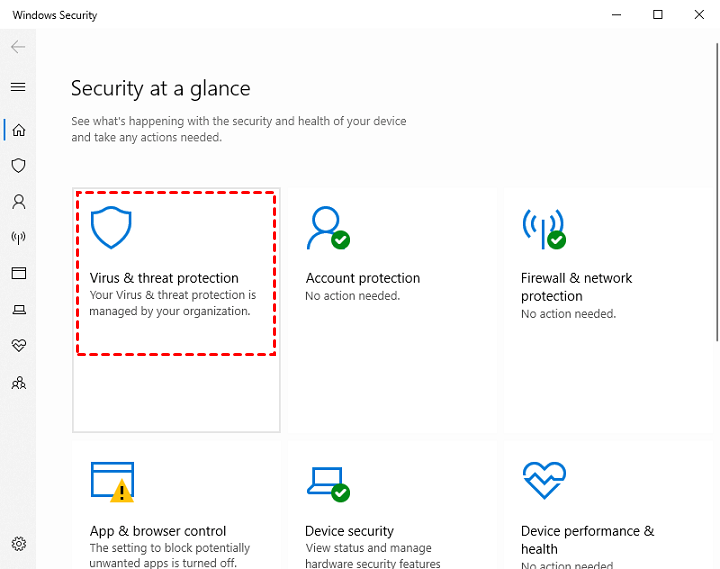
Step 2. Click «Virus & threat protection.»
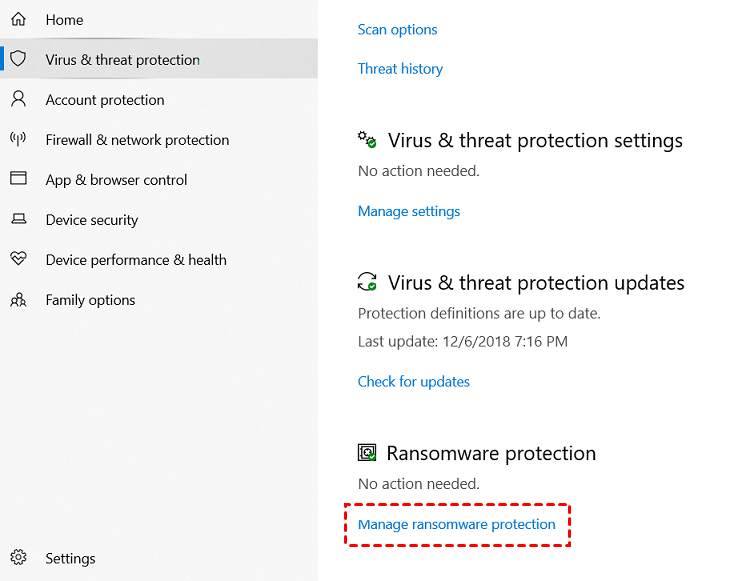
Step 3. Scroll to «Ransomware protection» and click «Manage ransomware protection.»
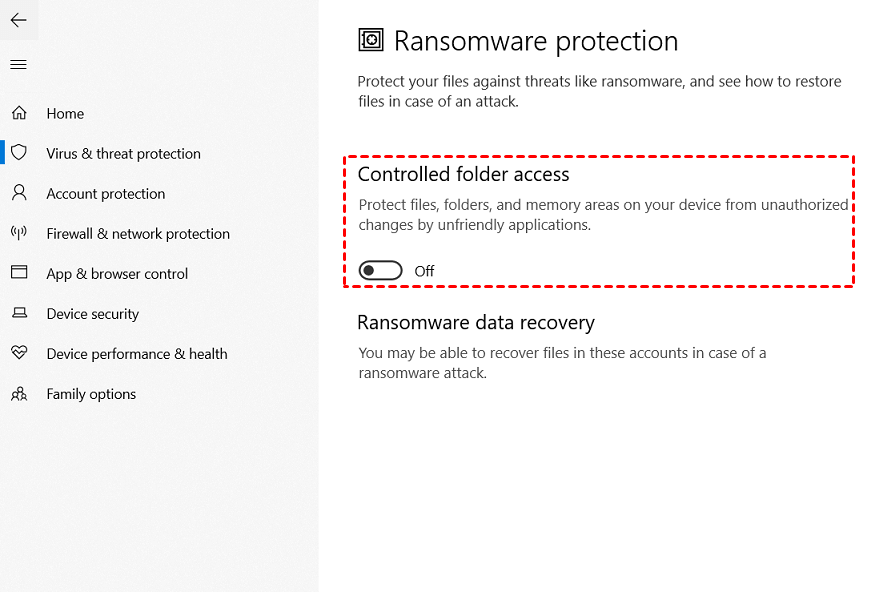
Step 4. Turn off the «Control folder access» option by toggling the button. Confirm the change if prompted.
Solution 3. Reinstall AnyDesk
Additionally, you can attempt to uninstall and reinstall the AnyDesk software. This process helps eliminate any potential corrupt files and replaces them with fresh, error-free ones, which could resolve the «desk_rt_ipc_error» issue.
Step 1. Open «Control Panel» > «Programs» > «Programs and Features.«
Step 2. Right-click AnyDesk and choose «Uninstall.»
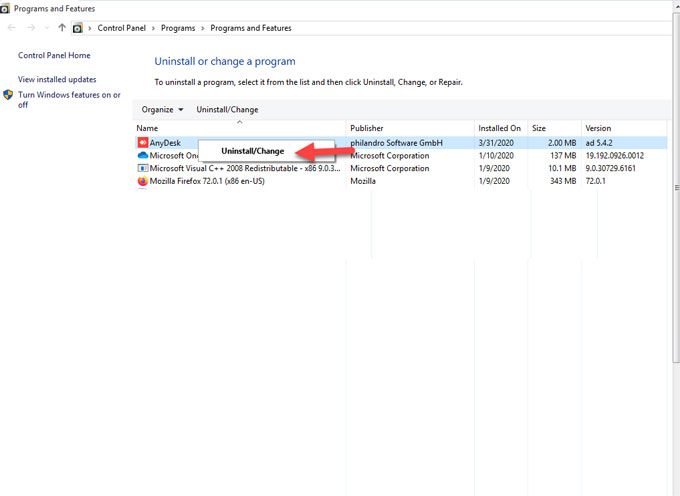
Step 3. Download AnyDesk from the official website.
Solution 4. Try an AnyDesk alternative for Windows
In case you’re seeking a cost-free alternative to AnyDesk on Windows, consider giving AnyViewer a try. This remarkable free remote desktop software is specifically designed for Windows computers, ensuring a smooth and efficient remote experience.
One significant advantage of AnyViewer over AnyDesk is that it does not limit user connections for commercial purposes. AnyViewer is completely free to use for all types of scenarios. Whether you need to transfer files between your home and work computers or offer remote assistance to clients, AnyViewer provides a comprehensive solution. Its versatility makes it an exceptional tool for remote work and support, catering to a wide range of needs with utmost ease.
Secure Download
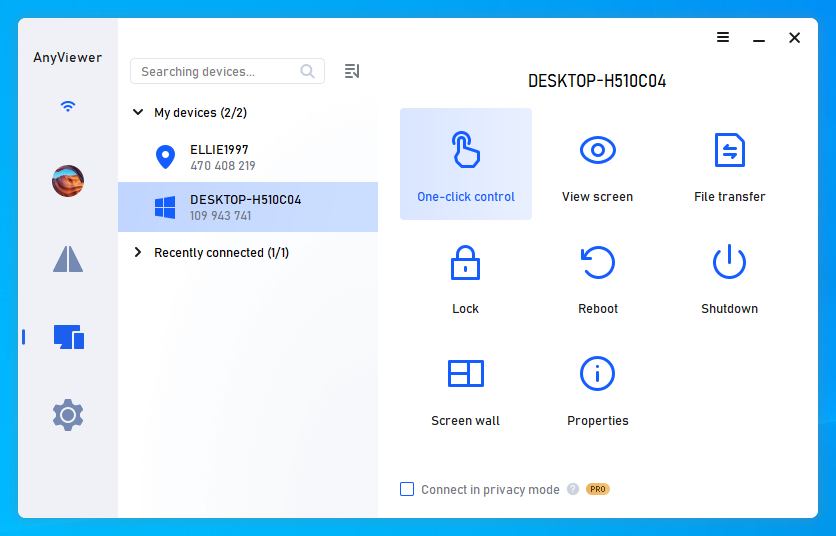
Step 1. Install and launch AnyViewer on both computers. Go to Log in, and then click Sign up. (If you already have signed up on its official website, you can log in directly.)
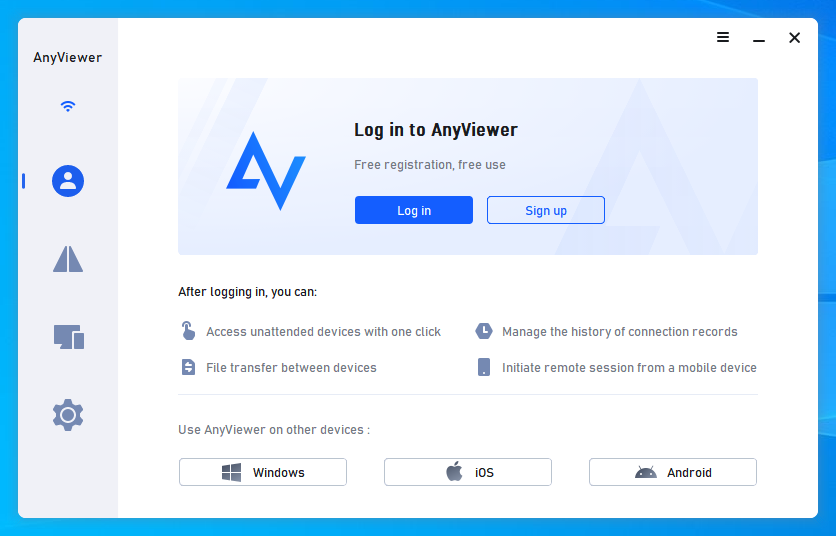
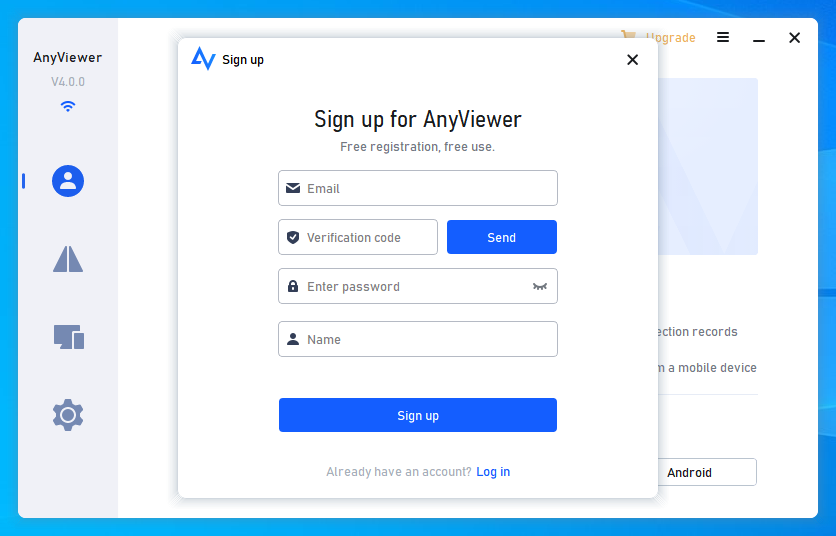
Step 2. Fill in the signup information and click Sign up to create an AnyViewer account.
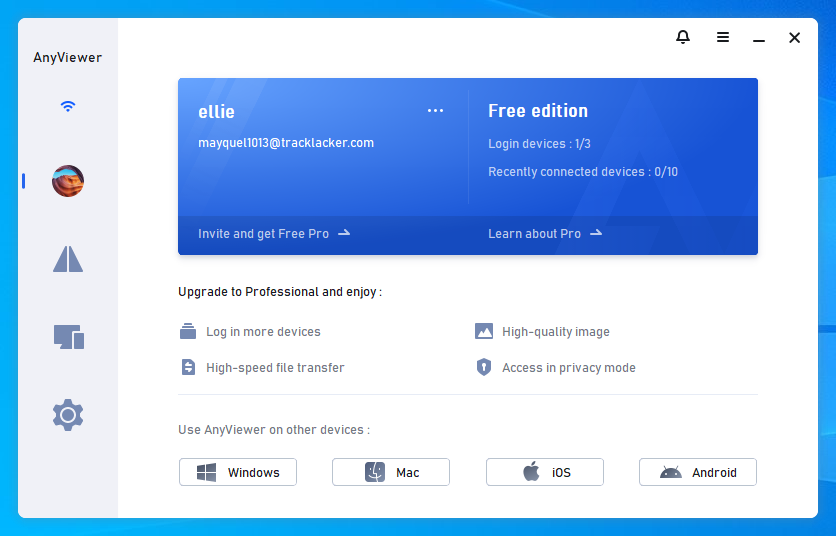
Step 3. Then you can see you successfully logged in to AnyViewer. Your device will automatically be assigned to the account you’ve logged in to.
Step 4. Log in to the same AnyViewer account on the two computers. Then you can achieve a one-click connection by clicking One-click control after going to Device and clicking the computer that you want to access.
- Allocate a higher number of devices, enabling greater flexibility and scalability.
- Enjoy the privacy mode feature, granting you the ability to connect to another computer while ensuring confidentiality.
- Access to higher file transfer speed.
How to fix AnyDesk “desk_rt_ipc_error” on Linux
For Linux users, there are two potential solutions to fix AnyDesk “desk_rt_ipc_error” on Linux.
Solution 1. Ensure both managers are using Xorg
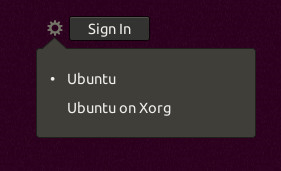
To address the AnyDesk «desk_rt_ipc_error» on Ubuntu, consider switching the display server from Wayland to Xorg/X11. Xorg is a well-established, open-source implementation of the X window system with broader support compared to Wayland.
Step 1. Restart your computer.
Step 2. At the login screen, click the gear icon, and select «Ubuntu on Xorg» to switch your display server. This change may resolve the AnyDesk issue.
Solution 2. Verify AnyDesk URL addresses resolution
To ensure proper functionality, verify that the DNS resolver correctly resolves AnyDesk URL addresses. If you encounter an external hardware firewall, like those commonly found in routers, you may need to whitelist AnyDesk for specific scans such as «HTTPS Scanning» or «Deep Packet Inspection.» Please note that the names of these scans may vary depending on the manufacturer.
These scans can occasionally interfere with AnyDesk’s secured TLS signal, resulting in periodic connection drops. By resolving these address-related issues, you can potentially resolve the «desk_rt_ipc_error» and enjoy a stable remote connection.
The bottom line
In conclusion, by following the provided solutions, you can effectively address the AnyDesk «desk_rt_ipc_error» for both Windows and Linux platforms. These solutions will enable seamless remote access. Additionally, exploring AnyViewer as a free alternative for Windows offers an excellent option for various remote work and support needs. Embrace these solutions to overcome the error and enhance your remote desktop experience.
Free Remote Desktop Software
- Unattended Remote Access
- File Transfer between PCs
- Multiple Monitor Supported
- Support Latest Windows 11

100% secure
Still Need Help?
Have your problem been solved? If not, please input query in the search box below.
Ошибки в Anydesk и способы их устранения
Ниже приведены популярные ошибки при использовании Anydesk и методы решения.
Навигация скрыть
Недостаточно оперативной памяти: ошибка Werfault
Среди вариантов решения:
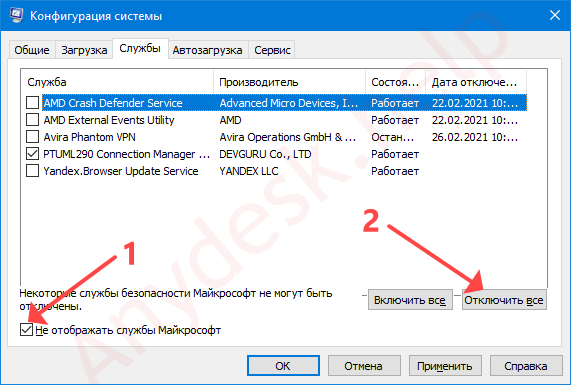
- Чистая загрузка Windows.
- Проверка целостности системных файлов командой sfc/scannow.
- Откат системы из точки восстановления.
- Отключение загрузки сторонних служб.
- Удаление менеджеров системы (штатных утилит для управления параметрами ноутбука).
- Переустановка драйверов видеокарты.
Ожидание изображение
Переустановите драйверы видеокарты, попробуйте как последнюю версию, так и более старые, если ваша видеокарта немного древняя).
AnyDesk не подключен к серверу
Возможны обновления на сервере, попробуйте позже. Обновите приложение на обоих устройствах, откажитесь от использования VPN и прокси-сервера.
Нет звука во время сеанса
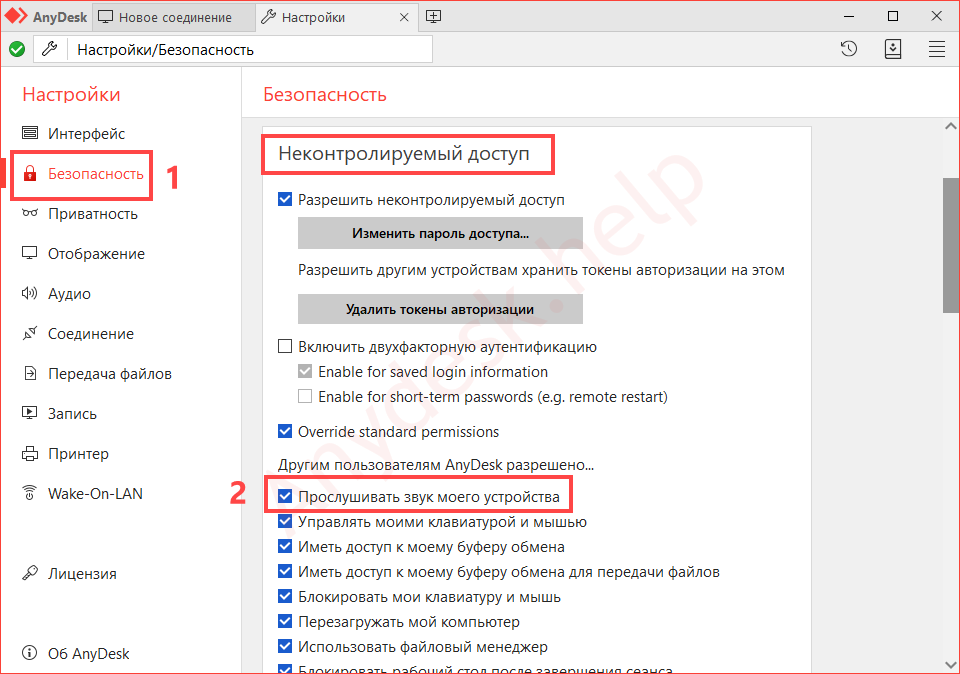
В настройках аудио разрешите передачу звука с текущего устройства.
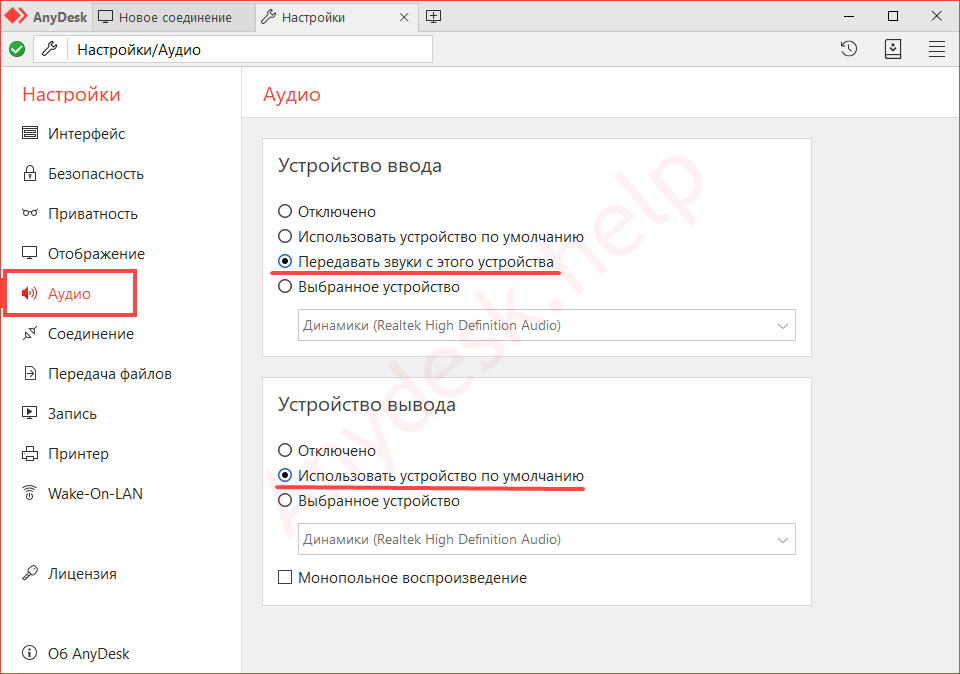
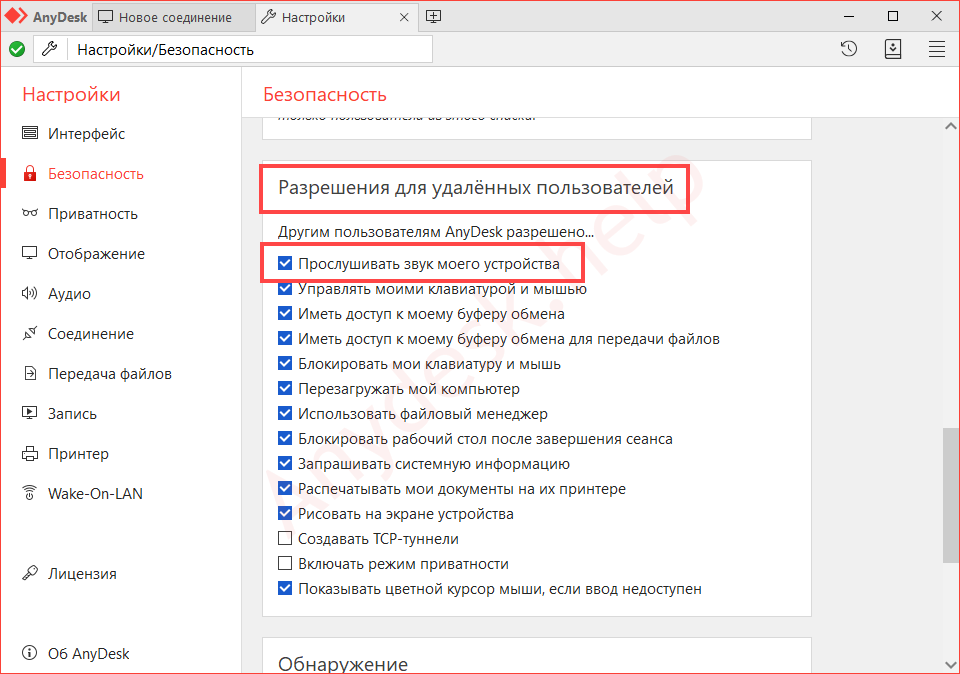
В настройках безопасности разрешите прослушивание звука в разделах «Неконтролируемый доступ» и «Разрешения для удалённых пользователей».
Не работает Ctrl + C, Ctrl + V
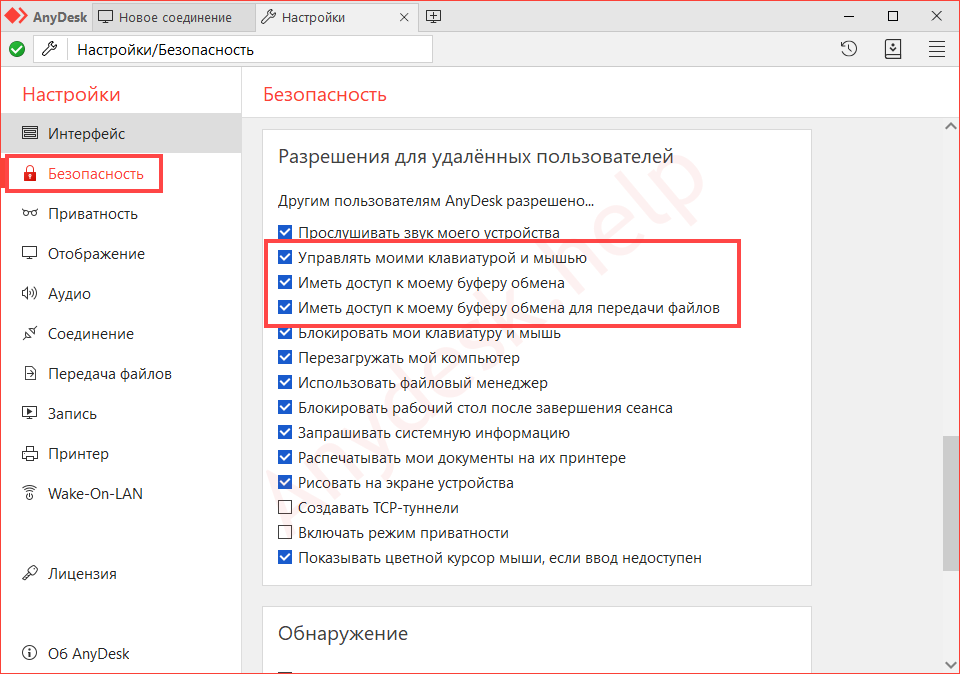
Чтобы горячие клавиши работали, активируйте параметры в подразделах «Безопасности» «Разрешения для удалённых…». Если разрешён неконтролируемый доступ – в одноимённом разделе.
Курсор с перечеркнутым кружком
Включите опцию «Управлять моими клавиатурой и мышью». Иногда помогает запуск программы от имени администратора.
Could not find a device при запуске Wake-on-LAN AnyDesk
Включите параметр Wake-On-LAN в BIOS/UEFI и AnyDesk.

Что делать, если при запуске Anydesk черный экран при подключении?
Такой баг замечен на Windows 10 после установки обновления 1903. Рекомендуется обновить графический драйвер. Скачайте последнюю версию программного обеспечения с официального сайта видеокарты и установите с заменой. Не загружайте драйвер через «Центр обновления» Windows.
Ошибка подключения Anydesk
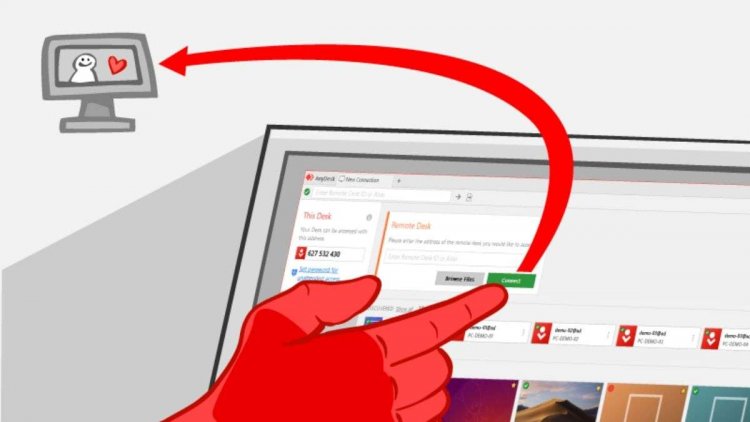
Если вы столкнулись с ошибкой подключения в программе Anydesk, в этой статье мы предоставили информацию о том, как ее решить.
август 4, 2021 — 17:14 Обновлено: Январь 10, 2023 — 17:30
Ошибка подключения Anydesk
Почему я получаю ошибку подключения Anydesk?
- Ваша программа Anydesk может быть старой версией, поэтому проверьте, актуальна ли ваша программа.
- Ваш интернет может внезапно отключиться.
- Ваше соединение может быть слишком медленным для поддержки программы.
Как исправить ошибку подключения Anydesk?
Прежде всего, проверьте замедление или отключение вашего интернета. Если вы испытываете отключение от Интернета, обратитесь к поставщику услуг Интернета.
Если ваш Интернет работает с нормальной скоростью и вы не испытываете отключений, нам нужно будет проверить, обновлена ли программа.
Наша программа актуальна, но если вы все еще сталкиваетесь с такой ошибкой;
- Найдите Панель управления в строке поиска «Пуск» и откройте ее.
- Откройте вкладку Сеть и Интернет.
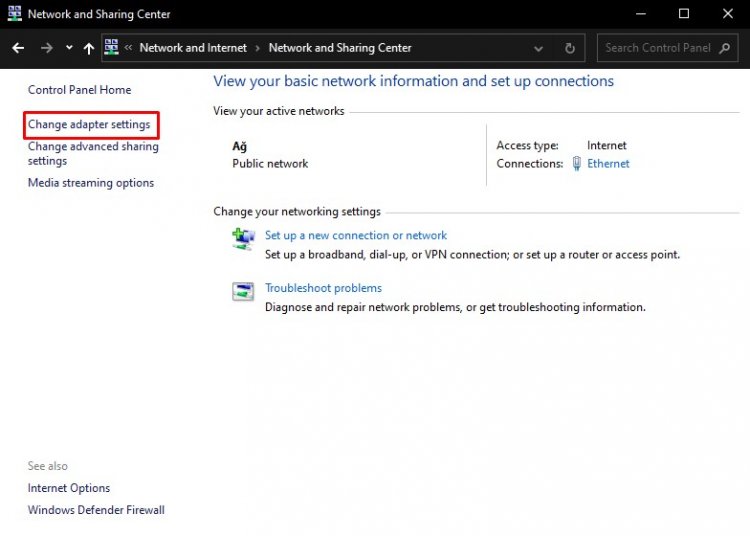
- Щелкните вкладку Центр управления сетями и общим доступом.
- Щелкните вкладку «Изменить параметры адаптера» в левой части появившегося меню.
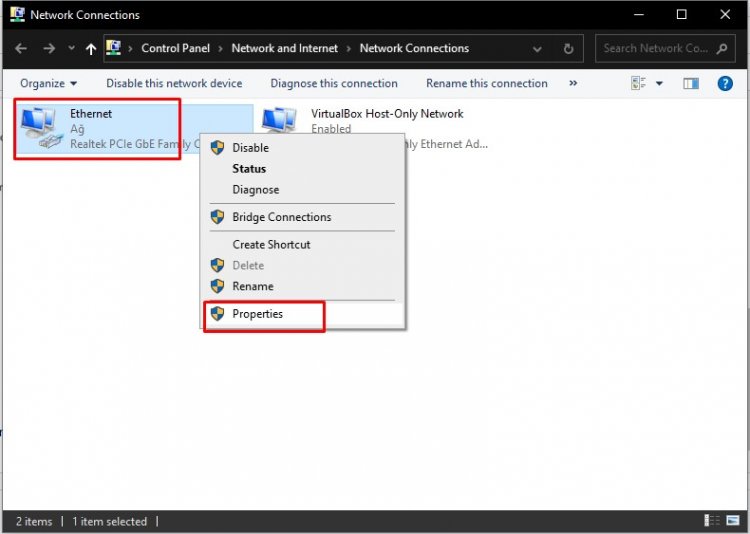
- На появившемся экране мы открываем свойства, щелкнув правой кнопкой мыши наш Интернет-протокол.
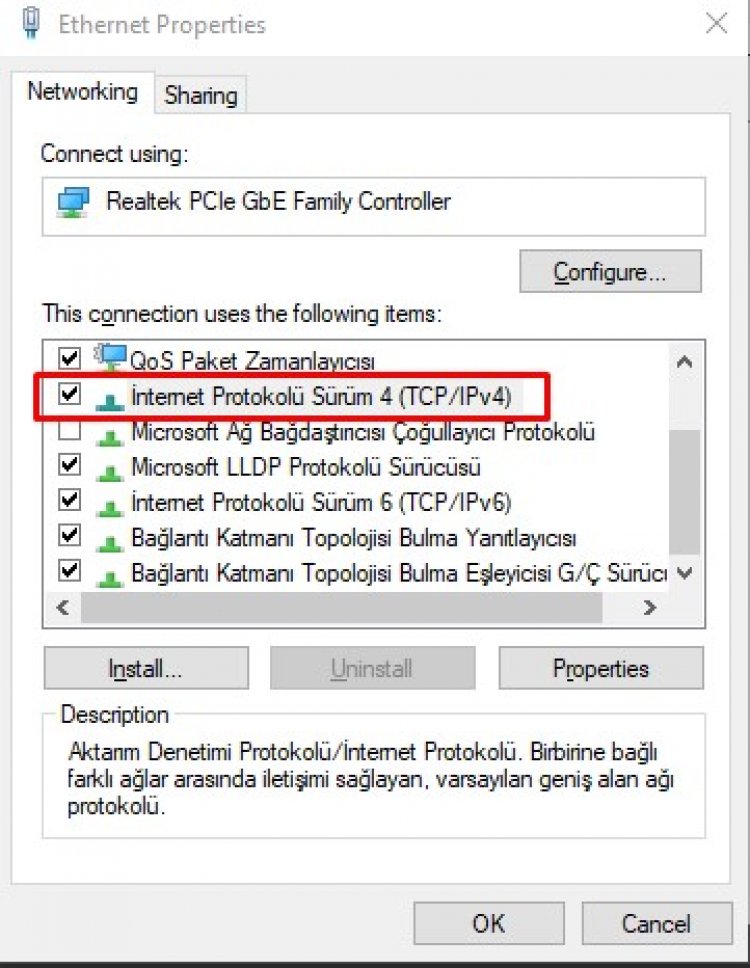
- Дважды щелкните параметр Интернет-протокол версии 4 (TCP / IPv4) в открывшихся настройках Интернета.
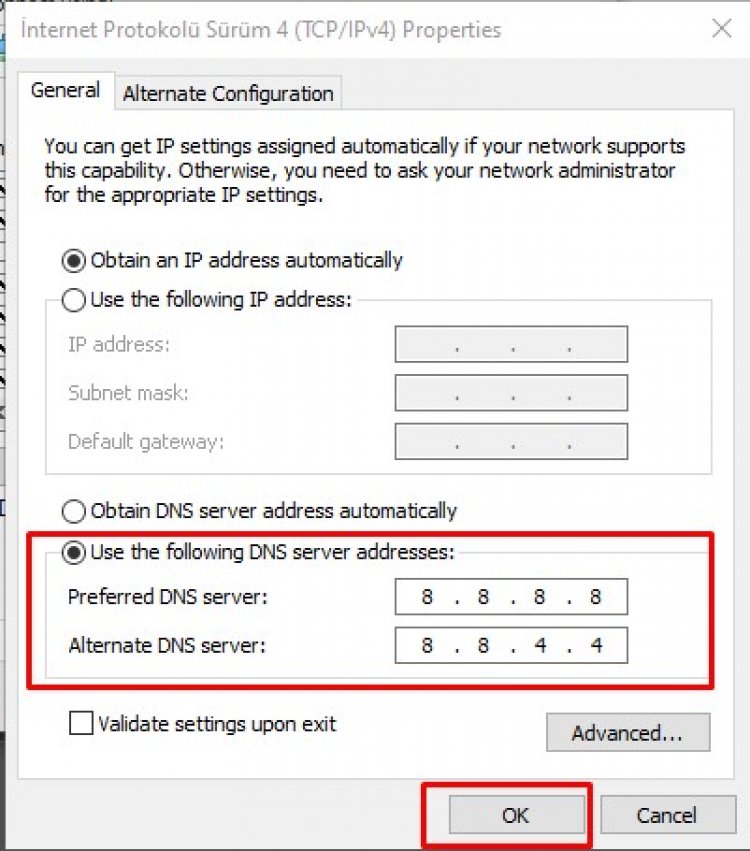
- Щелкните Использовать следующие адреса DNS-серверов в открывшейся настройке и сохраните их, введя адрес DNS, который мы предоставили ниже.
Предпочтительный DNS-сервер: 8: 8: 8: 8
Альтернативный DNS-сервер: 8: 8: 4: 4
Ярлыки
- ошибка подключения anydesk
- проблема подключения anydesk
- ошибка подключения к сети AnyDesk
- ошибка anydesk
- подключение anydesk
- anydesk