Why is Your Roblox Account Restricted? Here’s How To Fix It

Since people of all ages play Roblox, it has an uncompromising system for Parental Controls and Restrictions to regulate media, content, and games shared on the platform. For example, players cannot chat with each other unless they are friends, and they cannot post links or advertisements.
Additionally, Roblox has a strict policy against inappropriate content, and players can be banned from the game for violating this policy which is often why your Roblox Account is restricted.
Read on to learn more about Roblox Account Restrictions in the article below.
Contents show
How To Fix Restricted Roblox Account
A restricted Roblox account may not allow you to experience the game with all its features. Here are some steps to help you to fix the limited Roblox account.
Check For Parental Controls
The first reason for a Roblox Account to be restricted are Parental Controls. Sometimes, when these are enabled, you may not be able to play certain games or watch content. Therefore, the first thing you should do whenever faced with a restriction error is to disable parental controls.
Ensure You Have Enabled All Permissions
The second most common problem is with your privacy settings. Follow these steps to enable all required permissions to ensure you do not face any restrictions while playing Roblox.
- Go to settings.
- Select Security.
- Ensure the “Account Restrictions” setting is disabled.
- Now, open Settings again.
- Click on Privacy.
- Set the “Who Can Message Me” setting to “Friends.”
- Set the “Who Can Chat With Me In An App” setting to “Friends.”
- Set the “Who Can Chat With Me” setting to “No One.”
Now, restart Roblox and try joining a new game.
You Have A Pending Suspension
If you have a pending account suspension or have been reported by multiple users on Roblox, your account may be restricted, and you will be unable to join specific servers or games. You can only resolve this issue by removing the suspension of the report or getting in touch with the support team.
Log In With Another Account
Sometimes, your account might have trouble accessing the correct server with the appropriate settings due to a system bug. To verify this issue, try logging in to the game with another account and see if it works.
If you get the same error, it is likely a problem with the Roblox system, and you may have to wait a few moments before trying again.
However, if the problem persists, your account may be the main culprit, and you have to get in touch with Roblox support for a better solution.
Why Are Roblox Accounts Restricted?
There are several reasons why Roblox accounts may become restricted. The most common cause is violating the Roblox Terms of Use, which can include creating inappropriate content, engaging in harassment or bullying, or fraud or scams.
Other reasons for account restrictions can include violating the Community Guidelines, being under 13 years of age, or not having a verified email address associated with the account.
Account restrictions can be frustrating, but they are in place to help keep the Roblox community safe and fun for everyone. If your account is restricted, read over the Terms of Use and Community Guidelines to avoid violating them in the future.
Remember that spamming and multiple disconnections can also restrict your account on some servers of Roblox.
Conclusion
If you have a restricted Roblox account, you can try the methods mentioned above, and your issue will likely be fixed. However, if you are still having trouble, try resetting your password. You may need to contact Roblox support for further assistance if that doesn’t work.
Roblox parental controls
Roblox features a central dashboard to limit the chat functions, add a parental pin and account restrictions (to only access curated content by Roblox). Roblox also has a useful feature called ‘Age Visibility’ to determine settings for kids are age appropriate to keep children safe online.
What do I need?
Your child’s Roblox account details and the Roblox game
Restrictions you can apply

Chatting

In App purchasing

Inappropriate content

Online games

Social networking
Watch our video
Watch step by step instructions.

Step by Step instructions
These steps were recreated on smartphone but similar privacy settings and parental controls exist on other devices:
Recover password
Log into the account (If you can’t log in, try these steps for recovering your password)
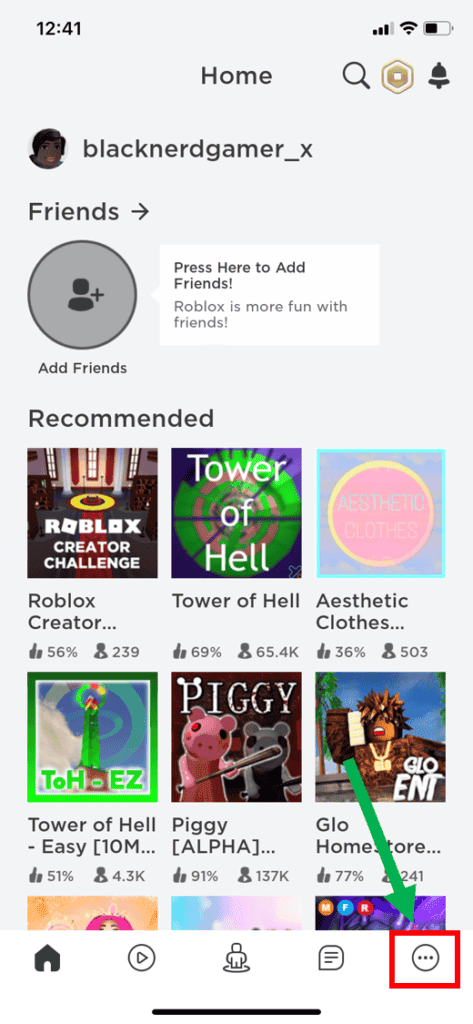
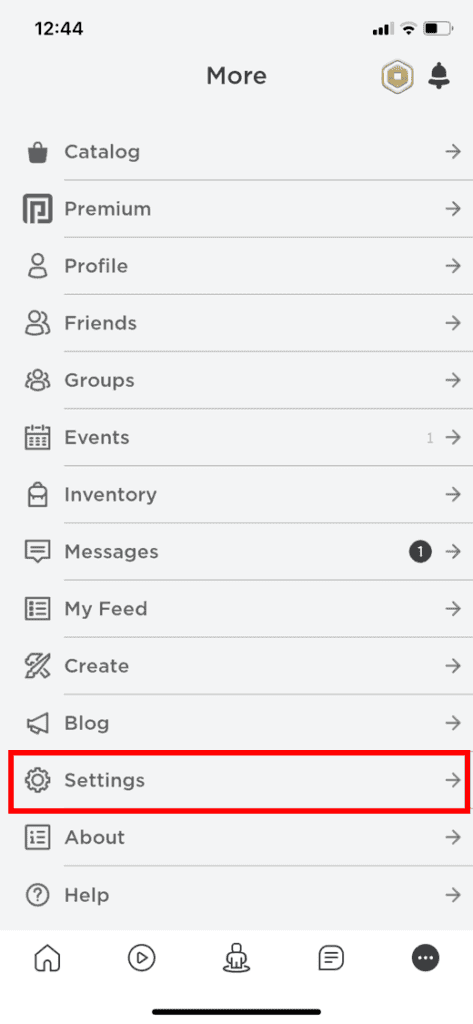
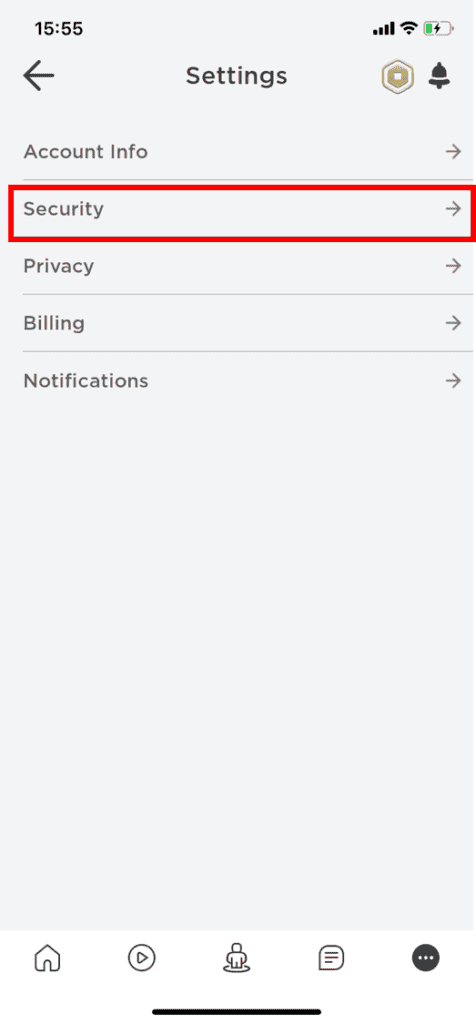
1. Go to Account Settings.
Browser – find the gear icon located at the upper-right corner of the site
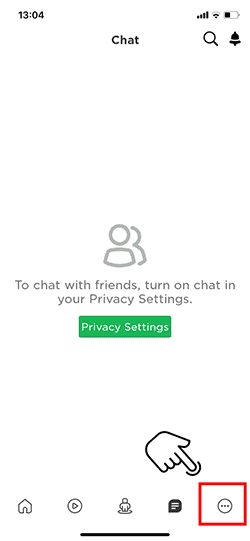
Mobile Apps – find the three dots icon for More.
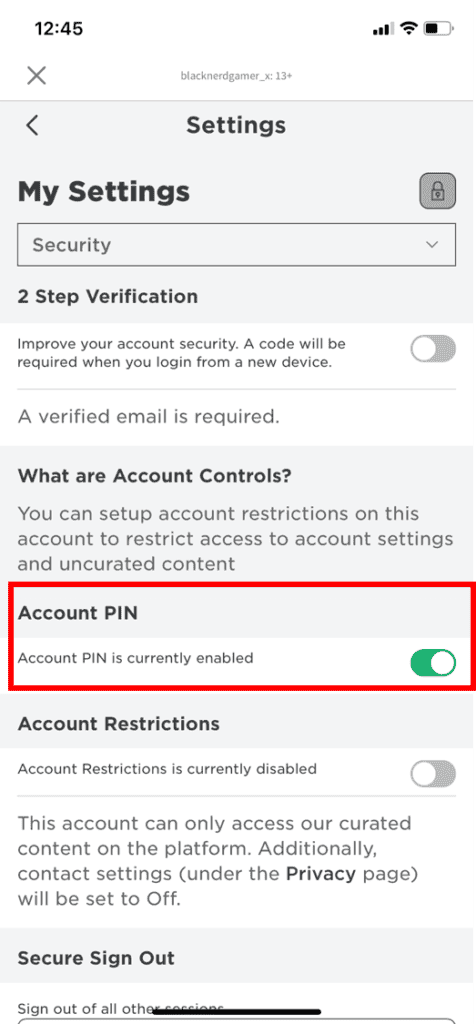
Set an account PIN
You have the option to add a four-digit Account PIN to lock your settings. Once an Account PIN is added, it will be needed to make any changes to the account settings. This feature protects your password, email address, and privacy settings.
1. Select the Security tab.
2. Select turn Account PIN on.
3. Create and confirm your new Account PIN.
Turn on Account Restrictions
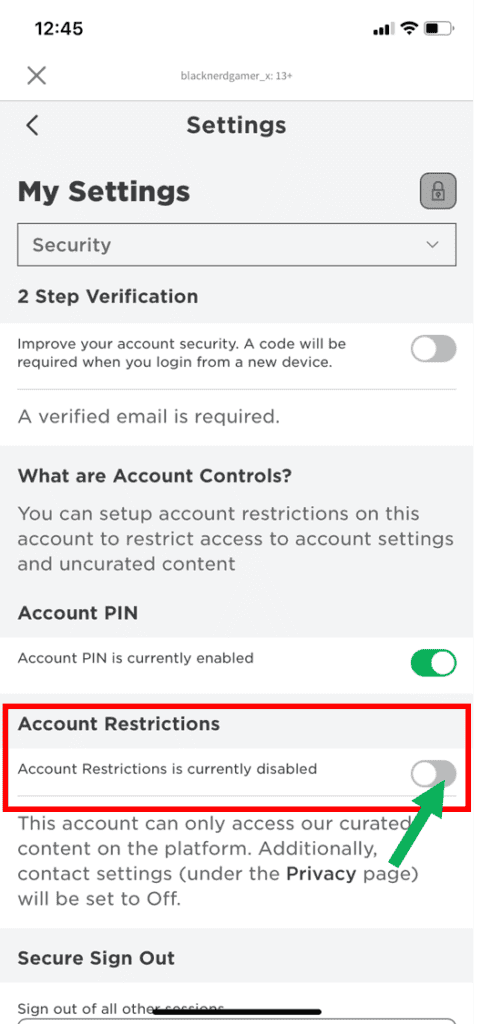
1. Get to the Security tab from Settings.
2. Next to Account Restriction toggle the button to ‘on’. The toggle will turn green and the following message will be displayed “Account Restrictions is currently enabled” which will promote gaming safety.
If you would like to disable Account Restrictions, simply press the toggle button again.
What happens when Account Restrictions are enabled?
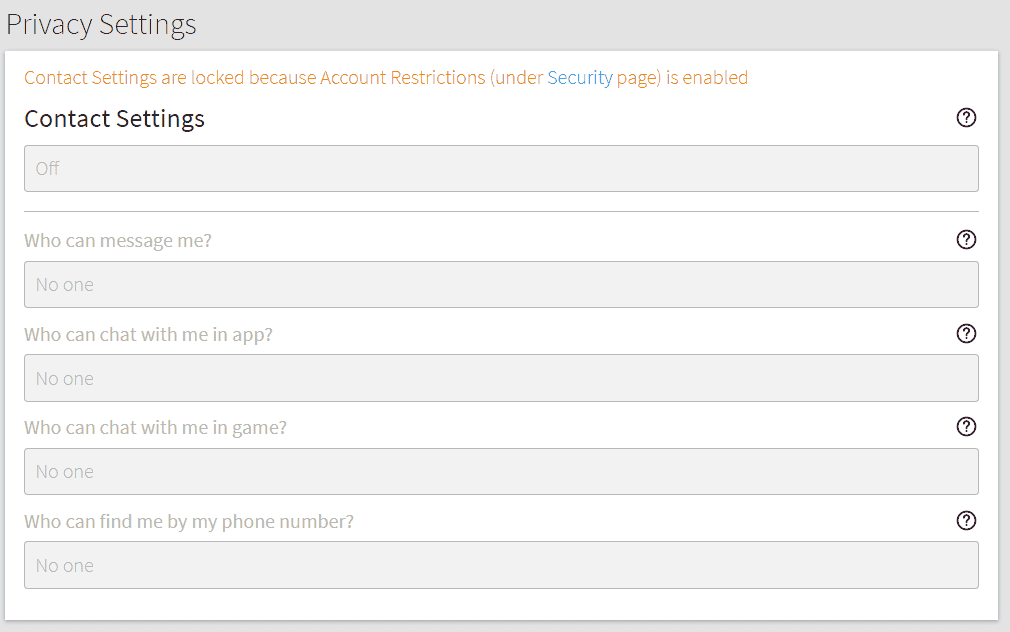
Enabling Account Restrictions will lock an account’s Contact Settings so that no other user can send messages, chat in-app or in-game, or find the account by its phone number.
None of these Contact Settings can be individually adjusted when Account Restrictions are turned on.
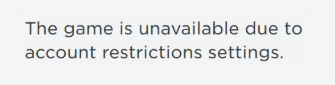
Users with Account Restrictions will see a message that the game is unavailable due to account restrictions settings.
Block a user
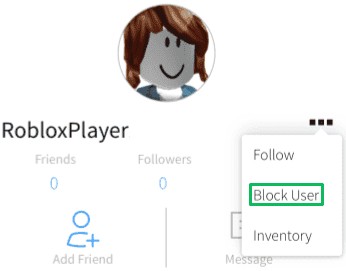
1. Visit the user’s profile page.
2. Select the three dots in the upper right corner of the box containing their username and friends/followers information.
3. A menu will pop up, where you can select the option to Block User.
Block users in-game
1. Find the user in the leaderboard/player list on the upper-right of the game screen.
2. If this list is not visible, it is likely just closed. To reopen it, select your username in the top-right corner.
Note – the leaderboard may not appear if you are using a small-screened device such a phone, in which case you would need to use the profile page method outlined above.
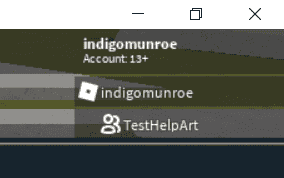
Once you have found the name of the user you wish to block inside of the leaderboard, select it and a menu will open up.
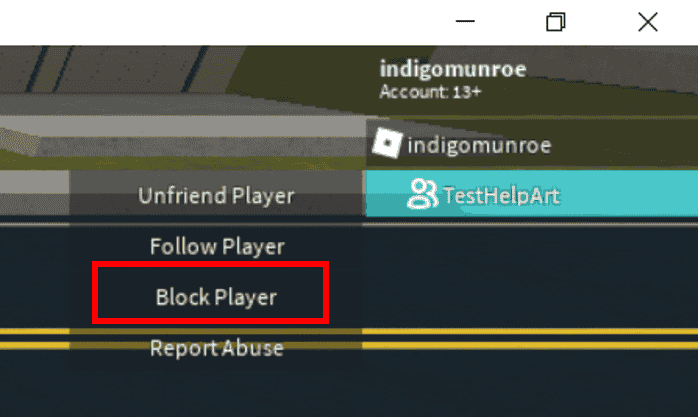
Select Block User. You can also choose to Unblock them or Report Abuse directly from this menu as well.
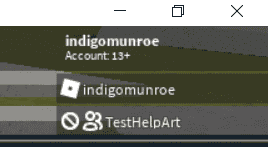
Once you have blocked the user, the icon to the left of their name will turn into a circle with a line through it to indicate they have been blocked.
Report game or user
Use the Report Abuse feature in a game to report the specific chat or other content that violates Roblox rules. It sends the information directly to our moderators and allows them to see what the other user is doing wrong.
1. Select the Menu button, located at the upper left of the screen.
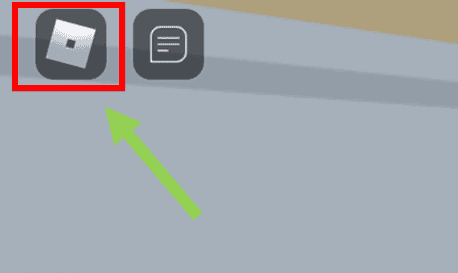
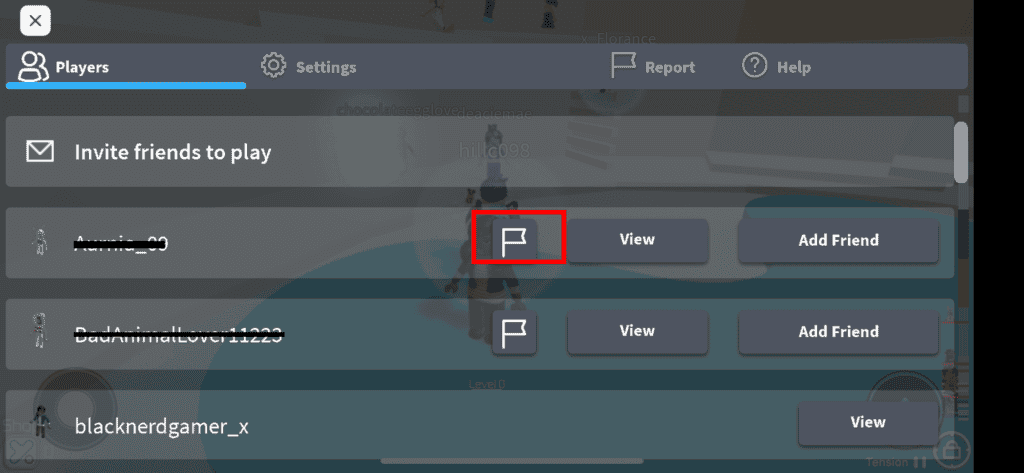
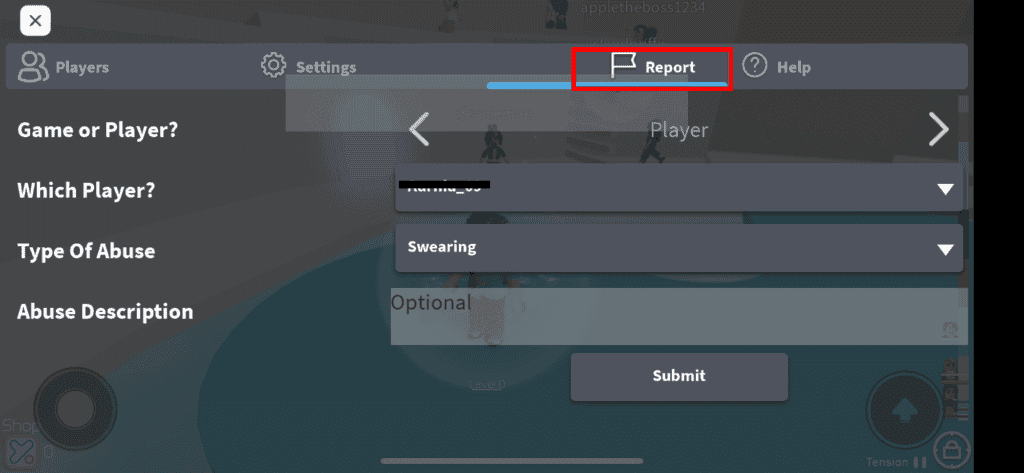
2. Select the flag icon located next to a user’s name, or select the Report tab at the top of the menu.
For Game or Player? select the Player tab.
Then select the Which Player pull-down menu, and find the username to report.
Next, select the Type of Abuse pull-down menu, and find the inappropriate action.
Additional details can be written in the Short Description box.
Select Submit.
Report other content
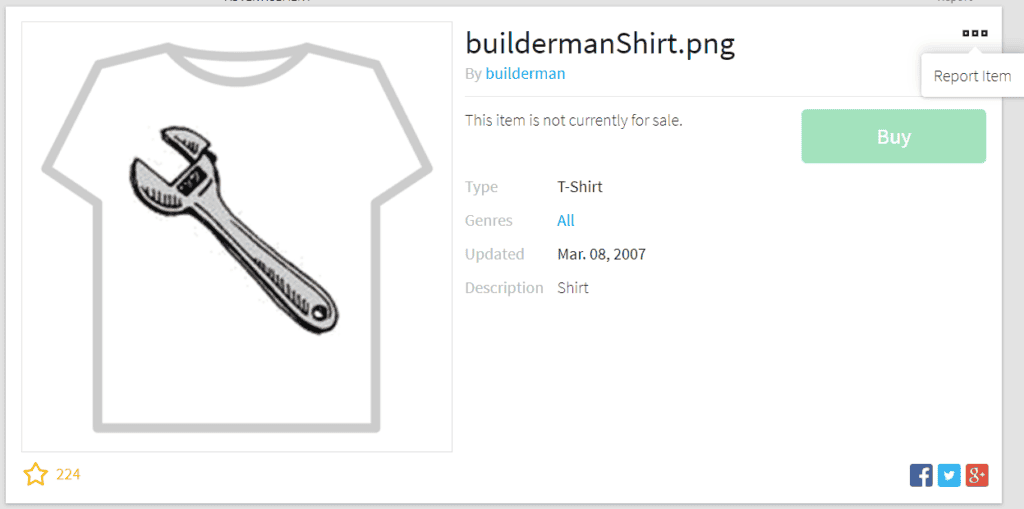
To report an item in the catalogue or library (such as a shirt, game pass, or model) that is breaking the rules.
1. Select the three dots button in the top right-hand corner of the item’s information box.
2. Select Report item and fill out the form.
Report app chat
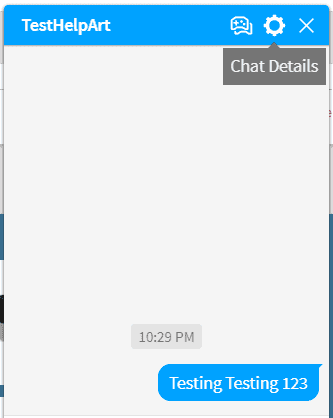
To report a chat made by another user in the browser app.
1. Select the gear icon in the top right-hand corner of the chat window to open the Chat Details.
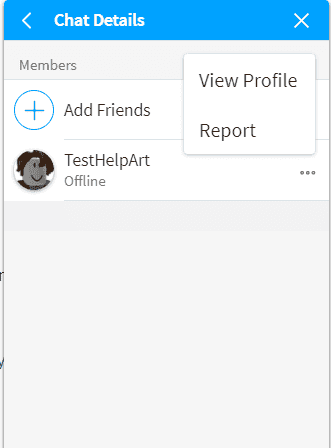
2. Next, select the button next to the user name that looks like the three dots, then Report.
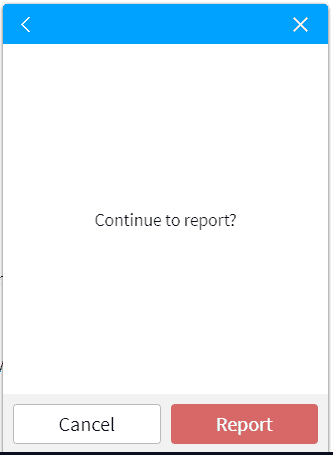
3. Then select the red Report button to continue to the report form then fill it out and select the green ‘Report Abuse’ button.
For mobile apps: It’s a bit different in the app.
1. Select the gear icon in the top right-hand corner of the screen.
2. Select Report Abuse.
Report a user-created advertisement
To report an Ad made by another user on the site.
1. Select Report below the right-hand side of the Ad image.

Update Chat & Privacy settings
1. Log into your account and go to Account Settings.
Browser
2. Find the gear icon located at the upper-right corner of the site
Mobile Apps
2. Find the three dots icon for More
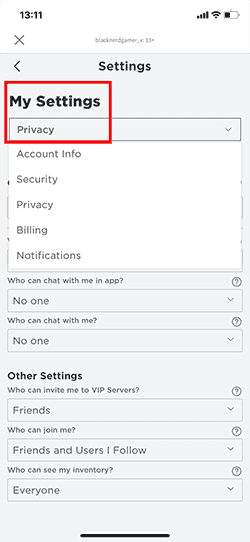
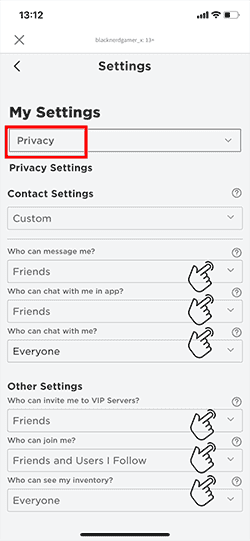
3. Select the Privacy tab then adjust the ‘Contact Settings’ and ‘Other Settings’.
Players age 12 and younger can select either Friends or No one. Players age 13 and older have additional options for privacy settings.
Turn on 2-step verification
You must have a verified email to enable this feature.
Log into your account, then go to Account Settings.
– Browser – find the gear icon located at the upper-right corner of the site
– Mobile Apps – find the three dots icon for More
Select the Privacy tab then adjust the ‘Contact Settings’ and ‘Other Settings’.
Select the ‘Security tab’, then turn Two-Step Verification on.
Search for Guides
Use search to find device, platform and networks guides or let us know if you still can’t find a guide.
Need to know more?
Follow these links to learn more or download this information.
Roblox Error 267
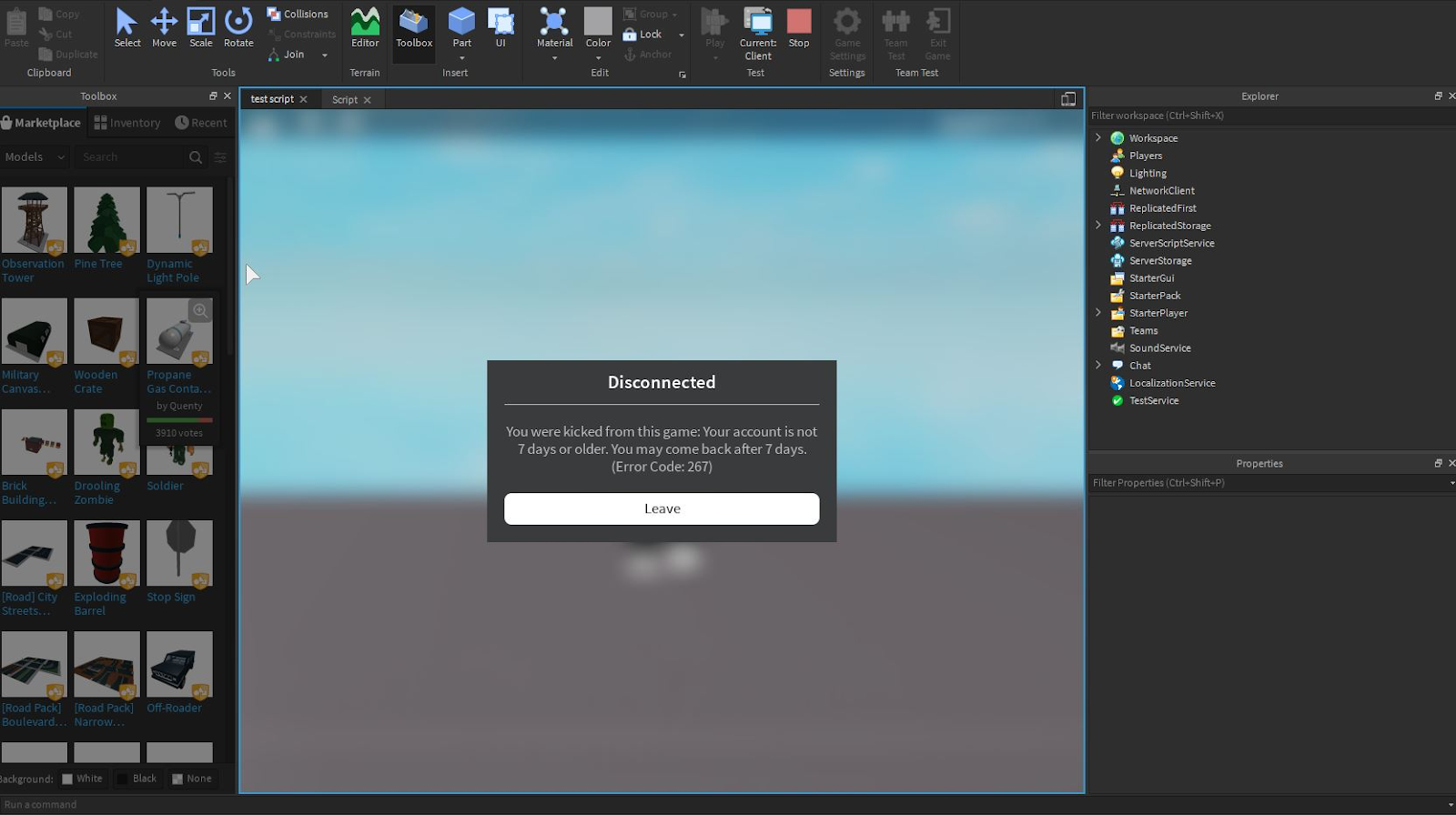
If you’ve tried to join a Roblox game and have been met with an error that has the following message at the bottom:
..then you’re in the right place!
In this guide, we’re going to go over what causes «Roblox Error Code 267» and help you find out if it’s possible to fix it.
Unlike some other Roblox errors, error 267 can mean many different things. This is because error 267 is generic error that is displayed when a server is kicking you. Below we’ve outlined the of the most common reasons a server will show the this error:
Account Age
Did you create your account within the past 60 days?
If you’ve created your account within the past month or two, and none of the other reasons below apply, then it is likely that the server has a minimum account age limit set up.
This is usually put in place to stop players with bad intentions (e.g. hackers) from creating new accounts to join the server after they have been banned. Unfortunately, it can prevent genuine new players from joining a server.
To fix this error, you will need to wait until your account is old enough to join the game. Usually the limit servers have set up is 30 days.
You’ve Been Banned
Did you break the game’s rules recently?
If you’ve broken the game’s rules, it is very possible that the moderation team has decided to issue a ban.
Depending on the rules you have broken, the ban may be temporary. In this case, you can resolve the error by waiting until your ban expires.
Roblox Is Having Issues
Is this happening on more than just one game?
If this is happening on every game you try to play, there is probably an issue with Roblox. We recommend waiting a few minutes and then trying again.
The Game Is Having Issues
Have you played the game before?
If you haven’t played the game before (and none of the above situations apply to you), chances are, the game you are trying to play is having issues.
We recommend waiting a day or two and then trying to play the game again.
Device Problems
If this issue is happening on different games and it doesn’t seem like Roblox itself is experiencing problems, it is possible that your Roblox files have been corrupted, or that an accidental change was made to them.
To resolve this, we recommend reinstalling Roblox. Please see our guide on how to reinstall Roblox.
How to Fix “This Experience Is Unavailable Due To Your Account Settings” on Roblox

Roblox is a famous gaming platform with multiple games for players to enjoy and create virtual worlds. However, many players have encountered the frustrating error “This Experience is Unavailable Due To Your Account Settings” which prevents them from indulging in a great gaming experience.
This error can occur for various reasons, such as enabled account restrictions, corrupted app data, and privacy or parental control settings. In this guide, we will mention several troubleshooting fixes to help resolve this issue. However, before diving into the solutions, it’s essential to identify the main cause to help you select an effective fix.
So, let’s get started!
1. Ensure Account Restrictions Are Disabled.
Roblox may have limited your access to particular games due to your account’s previous actions and history. You cannot access specific games if your account has been marked for inappropriate conduct or breached Roblox’s terms and conditions.
So, to ensure that your account isn’t unnecessarily restricted, you must disable these restrictions. This will allow you to have access to all the games and experiences suitable for your behavior.
Here’s how you can turn off Account Restrictions:
- To get started, log in to your Roblox account. In case you fail to login, try these methods.
- Then, click on the gear icon located at the top-right corner of the screen and choose Settings to access its menu.
- From there, go to the Security tab.
- Scroll down to the Account Restrictions section. If it states Account Restrictions are disabled, click on the toggle next to it to enable the feature.
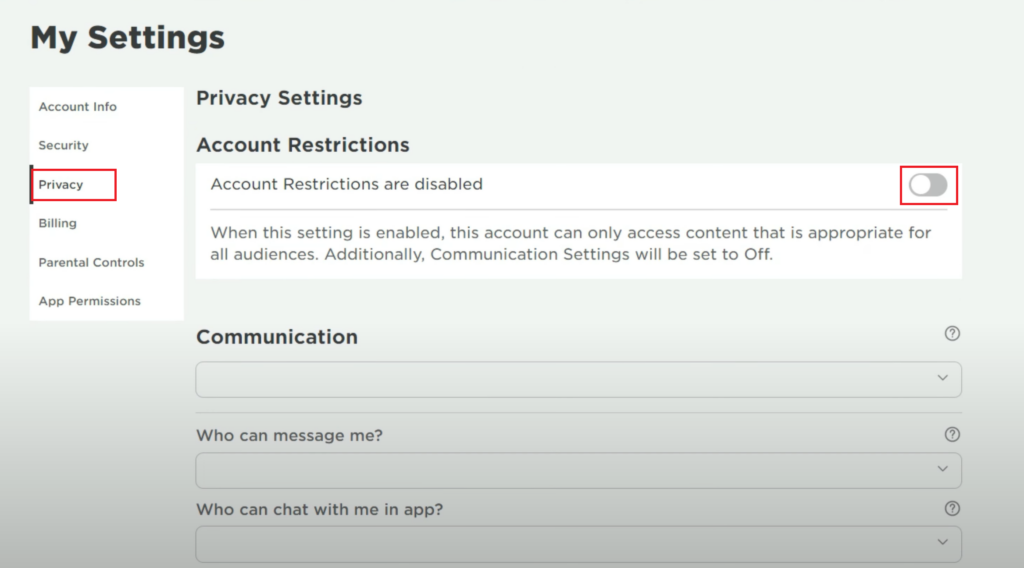
Be mindful that disabling all account restrictions may expose you to content and interactions that may not be appropriate for your age group. So from now on, practice good judgment and prioritize your safety and privacy when using Roblox.
2. Check Your Account’s Privacy Settings.
Roblox privacy options allow players to manage various settings, such as who sees their profile, chats, and other actions. If you cannot access a certain experience or game, it is probably due to high levels of privacy.
Review your account’s privacy settings to ensure they aren’t limiting your access to any game or experience. Here’s how you can do so:
- Begin by logging in to your Roblox account.
- Then, go to your account settings by clicking on the gear icon at the top-right corner of the screen and selecting Settings.
- From there, click on the Privacy tab.
- Next, scroll to the Communication section and ensure none of the options, including Who can message me?, Who can chat with me in app?, and Who can chat with me? are set to No one.
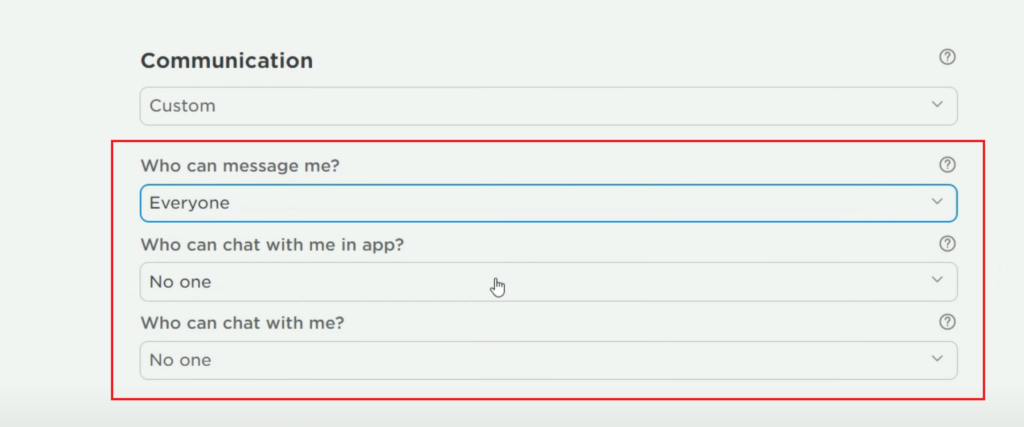
- In case No one is selected, open the drop-down menu and choose any other privacy option.
If you’re a bit cautious about your privacy, choose any option other than “Everyone” and “No one.”
3. Change the Parental Control Settings.
The parental controls feature enables parents or guardians to monitor and limit their child’s usage of a certain application. So, if you’re a child who’s playing Roblox and faces this error, it may be because your parents have set a limit to you accessing specific games.
You can modify the Parental Control settings with the help of your parents to gain access to games and experiences appropriate for your particular age.
Follow the steps below to do so:
- To start, launch your account’s Settings from the gear icon at the top right corner.
- Then, go to the Parental Controls tab.
- Scroll down to the Allowed Experiences section and choose the 13+ (Suitable for ages 13 and older) option.
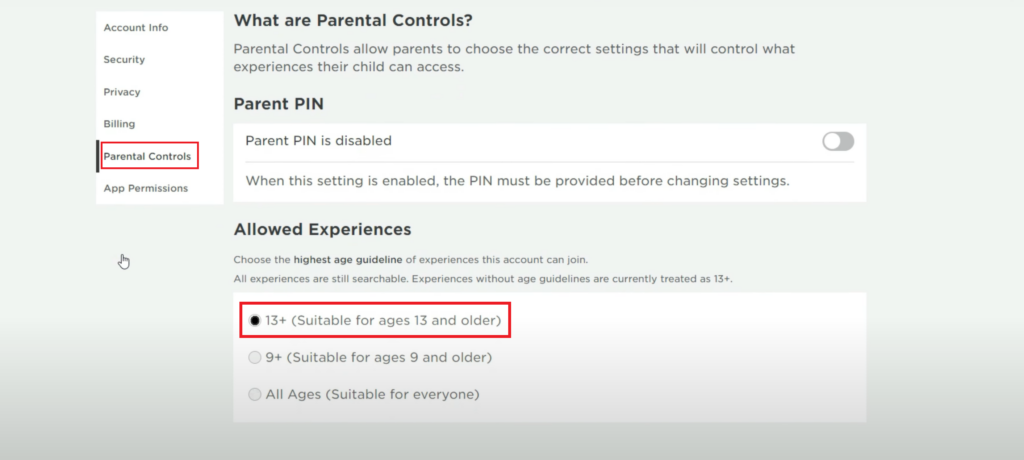
Now check to see if the issue has been dealt with. Otherwise, continue reading!
4. Restart Your Computer.
Sometimes, temporary files or issues may prevent your access to the games you wish to play. If this is the reason for the constant recurring of this error, simply restarting your computer will help you get rid of this issue.
This will also provide a fresh restart of the system and the network connection, thus resolving any connectivity issues responsible for the error.
To restart your Windows PC, perform the following actions:
- Firstly, go to the Start menu.
- Then, click on the power icon and choose Restart from the options.
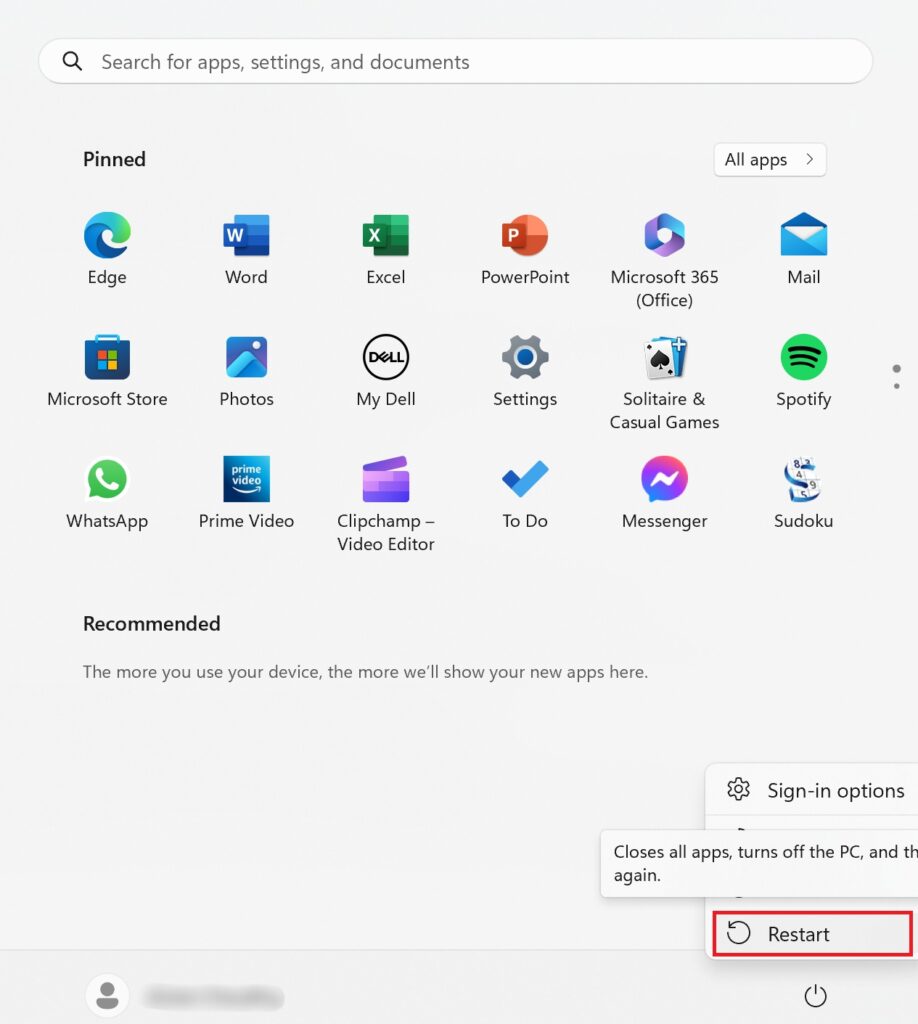
When your system turns back on, launch Roblox and check if the issue “This Experience Is Unavailable Due To Your Account Settings” on Roblox has been resolved.
5. Clear Browser Cache and Cookies.
Build-up browser cache and cookies might occasionally interfere with your access to games or experiences that you’re trying to attempt. Hence, clearing the cache and cookies will remove any stored data disrupting your gaming experience, enabling you to regain your access.
Follow the instructions below to clear the browser cache and cookies:
- Launch your browser and click on the menu icon at the top right corner of the window.
- Click on Settings, then go to the Privacy tab.
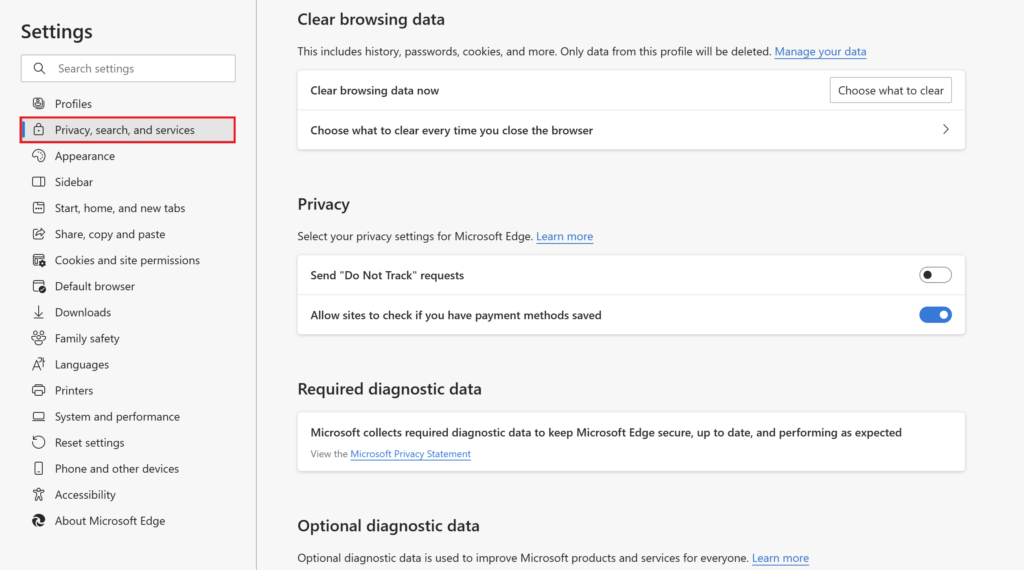
- Choose to clear cookies, cache, and data, and specify the time range for which you want to do so.
- Confirm your action when prompted.
Keep in mind that these steps are generalized, and the options may differ slightly depending on the browser you use.
6. Clear Local App Data Cache.
The local App Data cache deposits temporary data that might be causing interference in the game’s performance and results in various errors such as this one. Deleting the app’s cache will resolve the problem and enable you to access any experience on Roblox.
Perform the following steps to clear the local App Data cache:
- To begin, press the Windows key + R and search for %localappdata%.
- Look for the Roblox folder when the window opens.
- Right-click on it and choose the delete icon from the context menu.
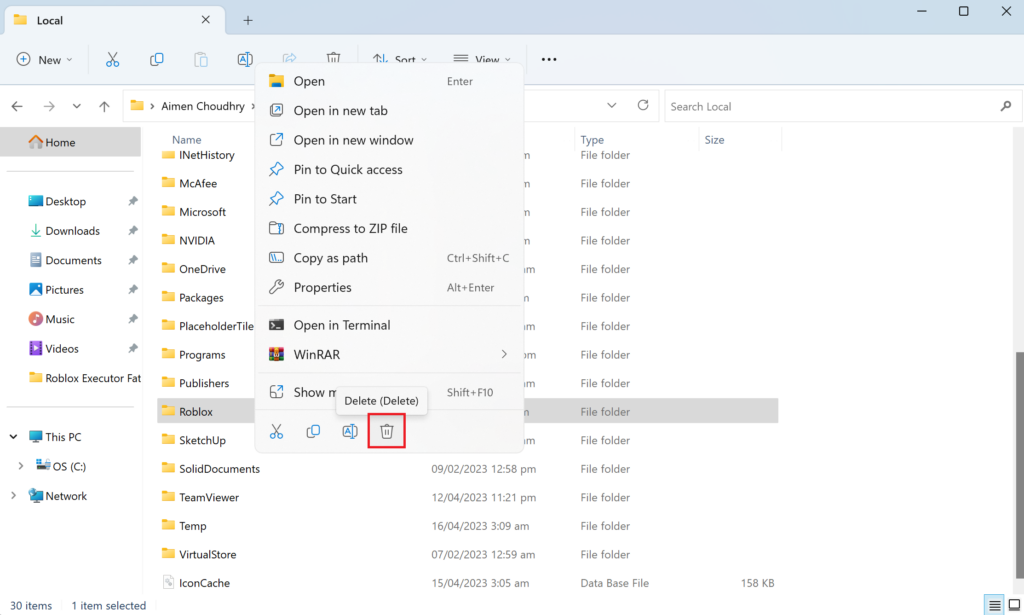
- Confirm your action by clicking on Delete.
Keep in mind that doing so will delete all game settings or any other saved data.
7. Contact Roblox Support.
If none of the fixes mentioned in this guide are of use to you, the last resort is to contact the Roblox support team. They will provide you further guidance on the error you’re facing based on your Roblox account settings.
Moreover, they can help resolve the error by using advanced troubleshooting methods or changing your account settings. If the problem is due to some technical issue from their side, they can work towards its solution.
This sums up our guide on how to fix “This Experience is Unavailable Due To Your Account Settings” on Roblox. By following the methods mentioned above, you can hopefully resolve the error and continue enjoying different games and experiences. If you have any questions or concerns regarding this topic, let us know through the comment section!
If this guide helped you, please share it.
Author
Aimen Choudhry is an architecture student who has always been fascinated by science. She now finds her therapy researching and writing about the latest technology and the issues that come alongside. Otherwise, you’ll find her playing video games, listening to music, or watching fantasy/sci-fi movies.